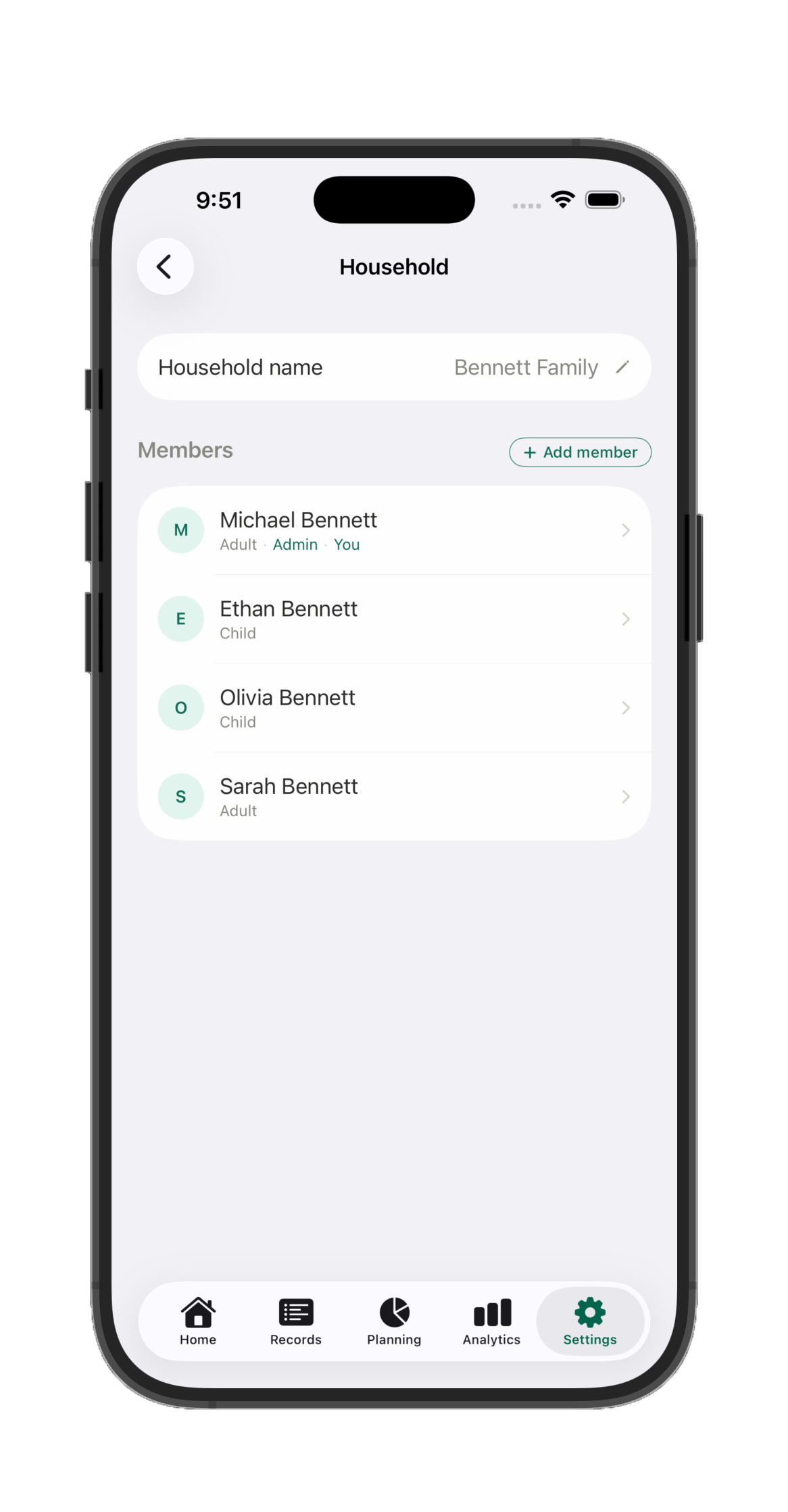
A Havnest Money household can have more than one person in it — a partner, family members, even your kids — each with their own profile. Everyone sees a shared, always-current picture of the household's money, but the household's admins get to decide exactly what each person can see and do: an admin can manage everything, an adult member shares in the same day-to-day access, and a child gets a simplified, safe experience built just for them. This screen — reached from Settings, and open to every member to view, though most of it is admin-only to change — is where all of that gets set up and managed.
The three access levels
Admin can manage everything: add, edit, and remove members; grant or revoke admin rights for anyone else; rename the household; and manage any account's ownership or visibility, regardless of who set it up. A household always needs at least one admin-level user to exist — Havnest Money won't let you remove admin rights from the only admin left in the household.
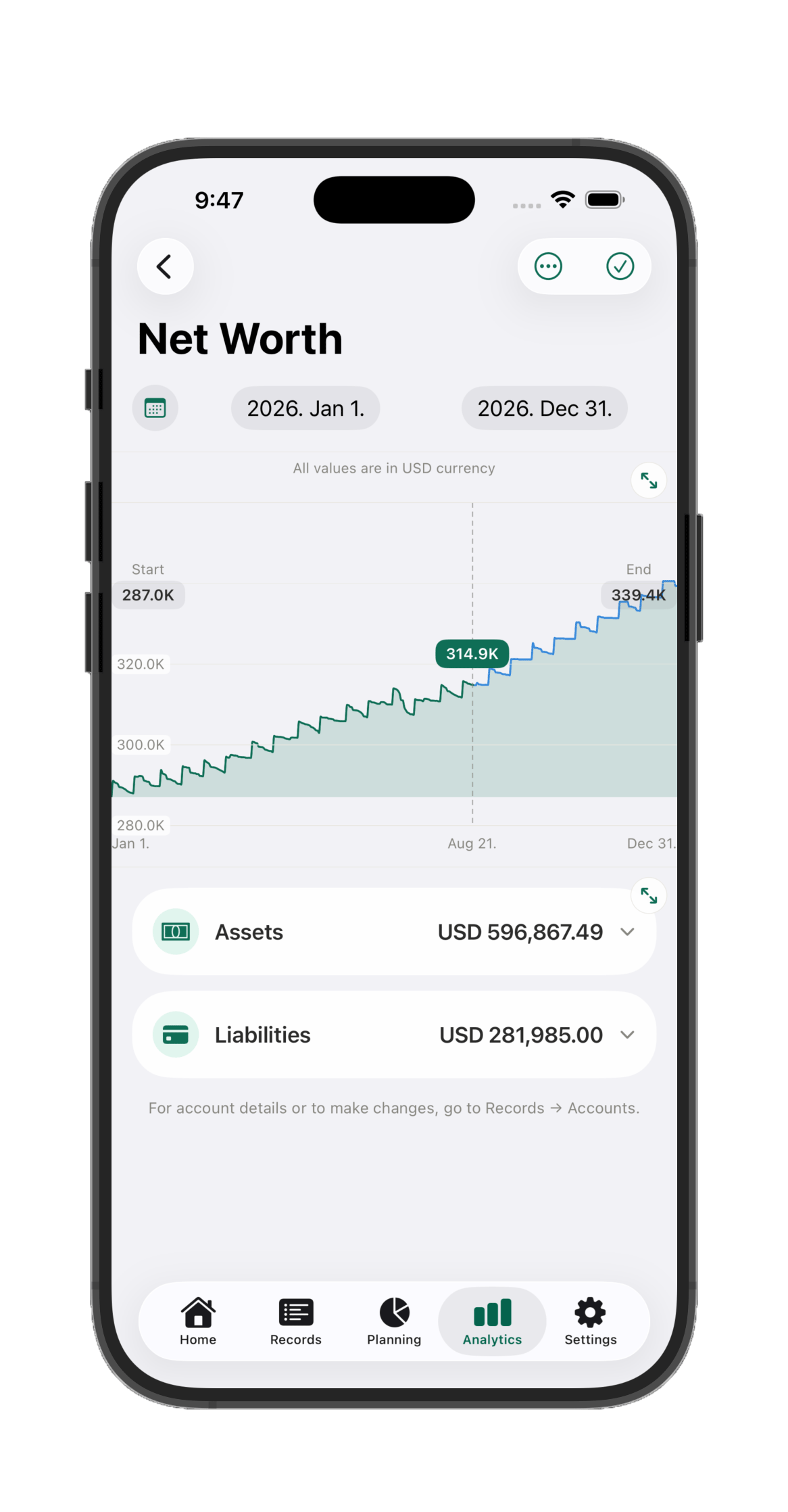
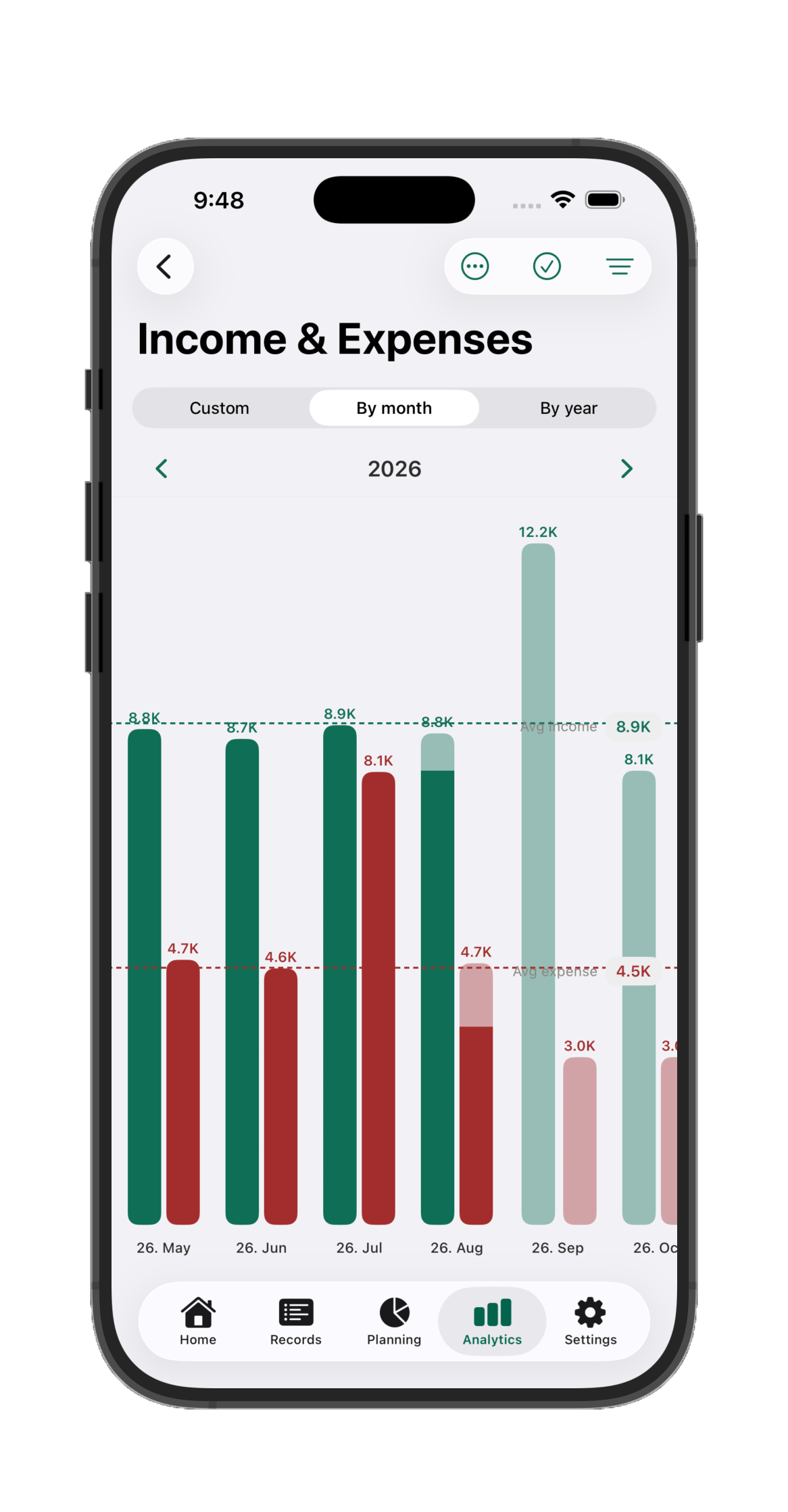
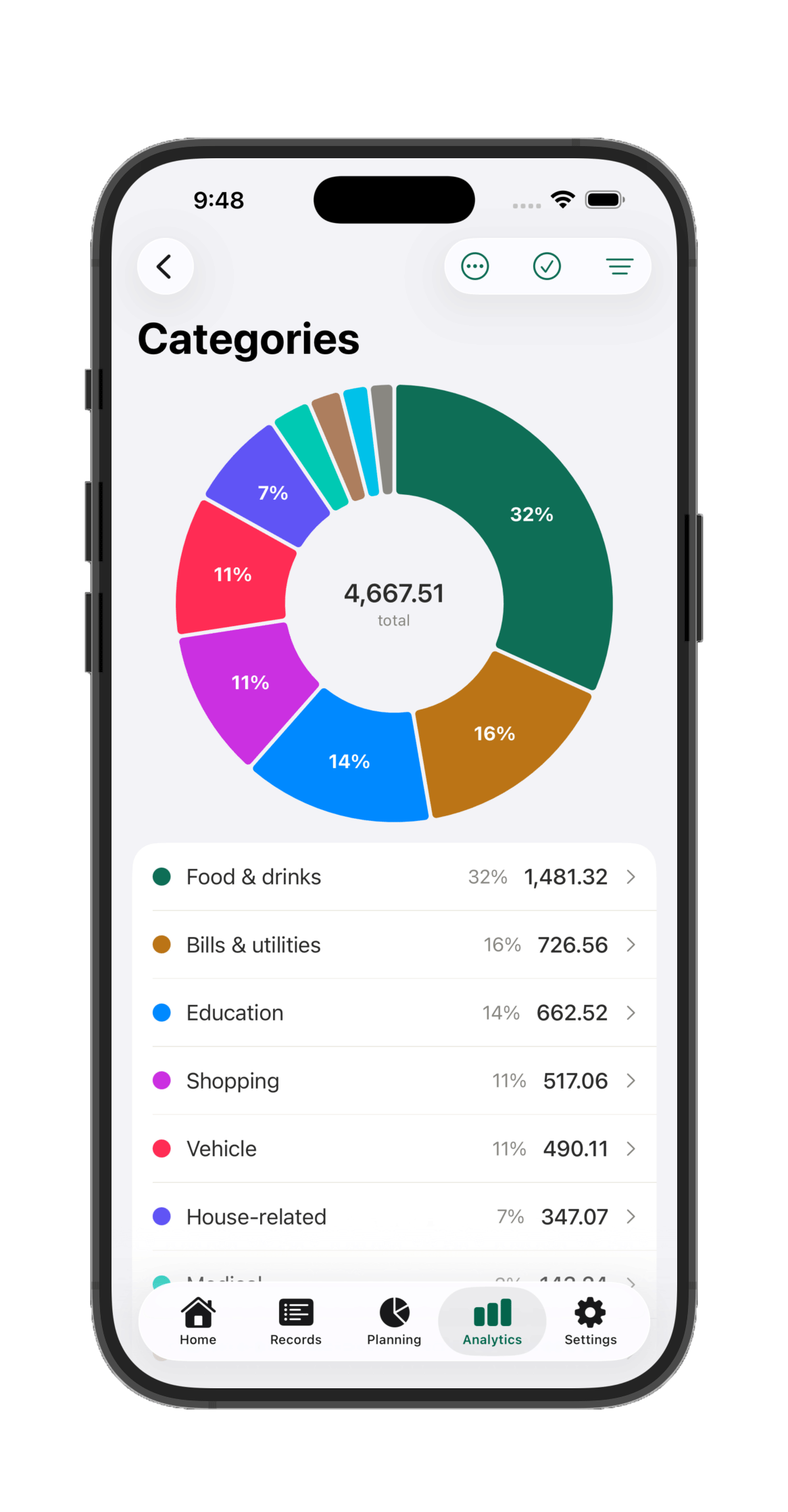
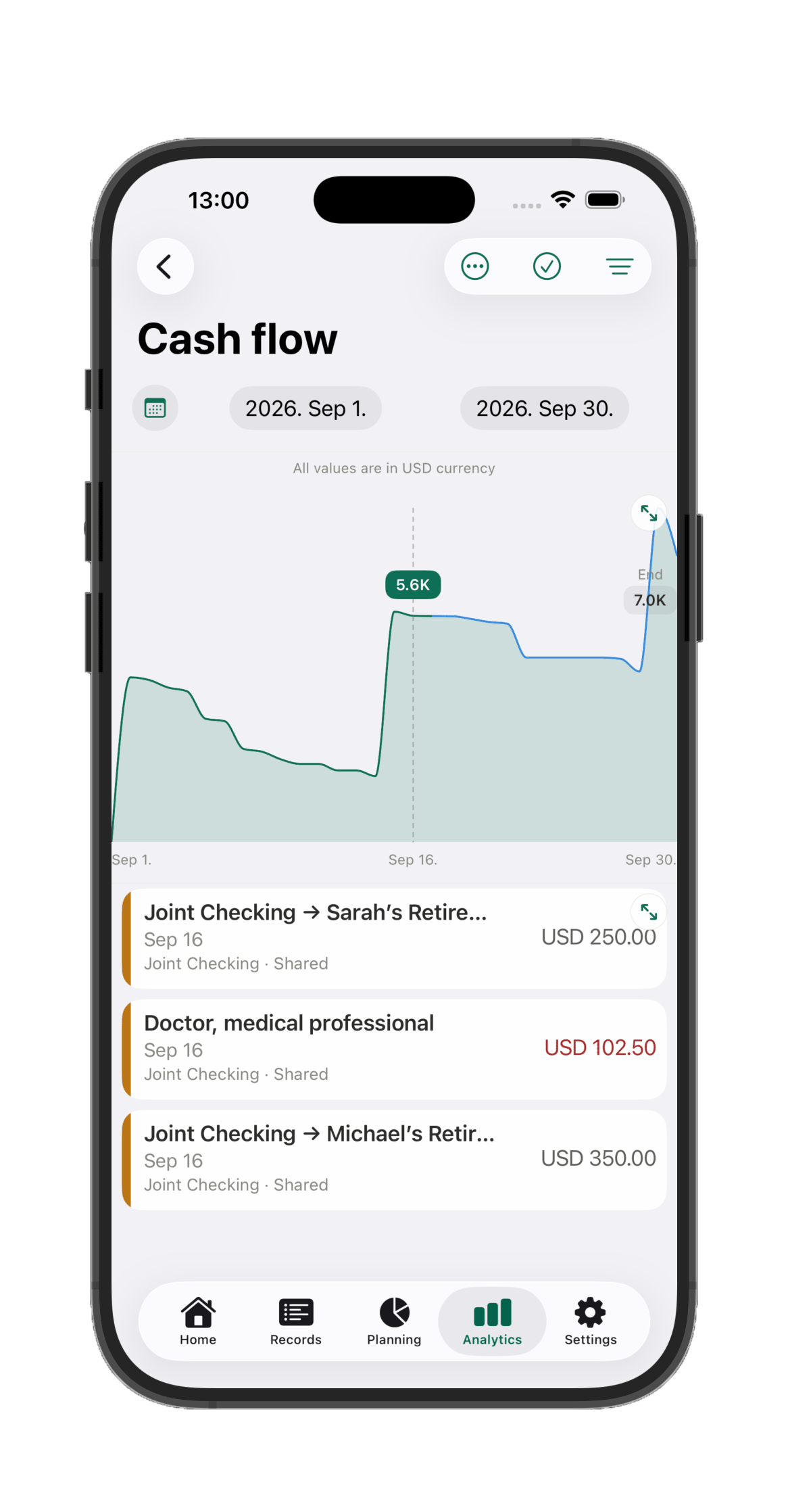
Adult (non-admin) members can add, edit, and delete transactions of their own accounts (or those of shared accounts), view accounts they are allowed to see, and view and set up budgets, using every planning and analytics screen. What actually varies from person to person lives on each individual account: any account can be shared with the whole household, shared with a specific list of members, or kept private to just its owner. A non-admin adult can't manage other members or change household-wide settings.
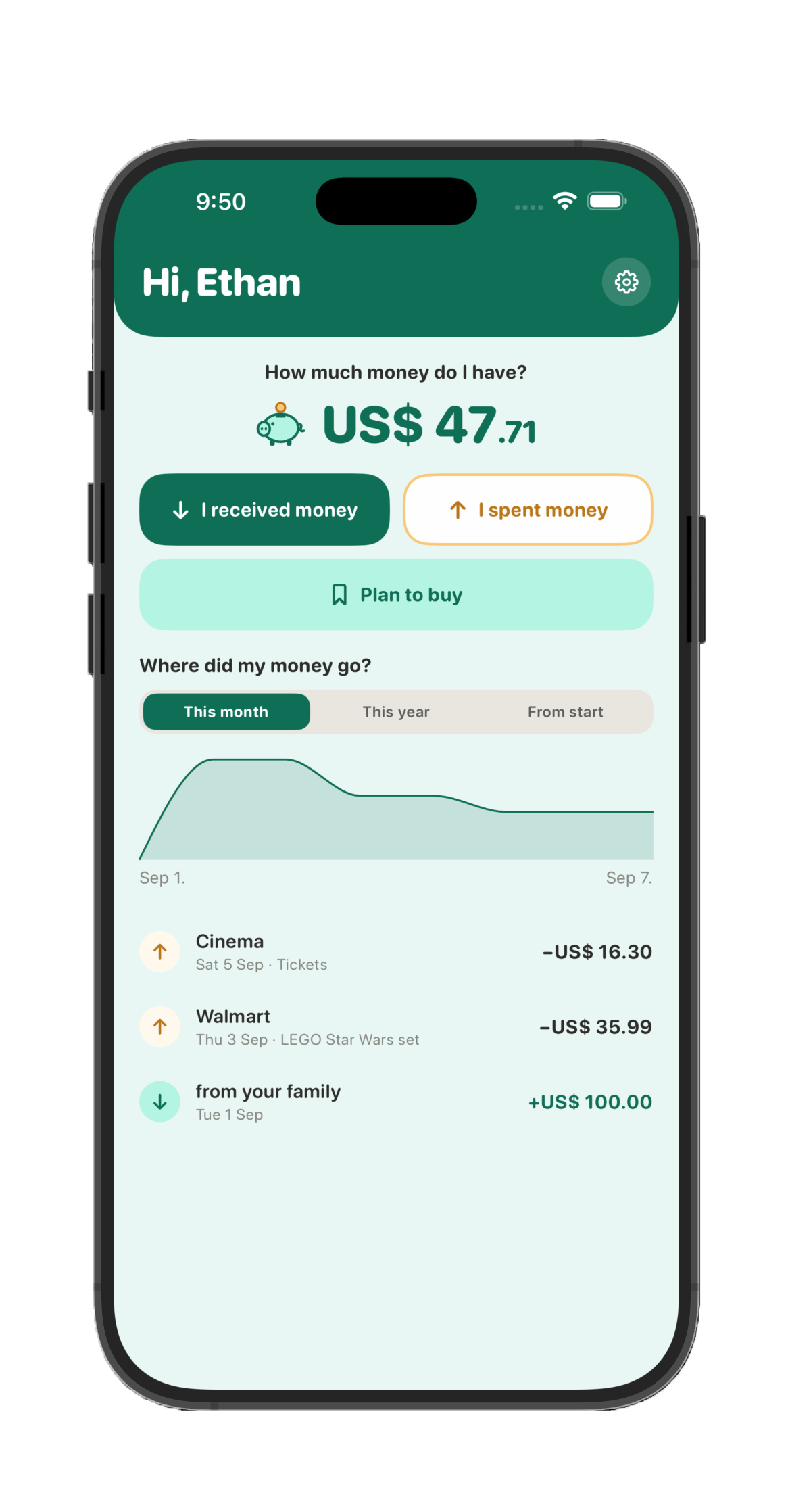
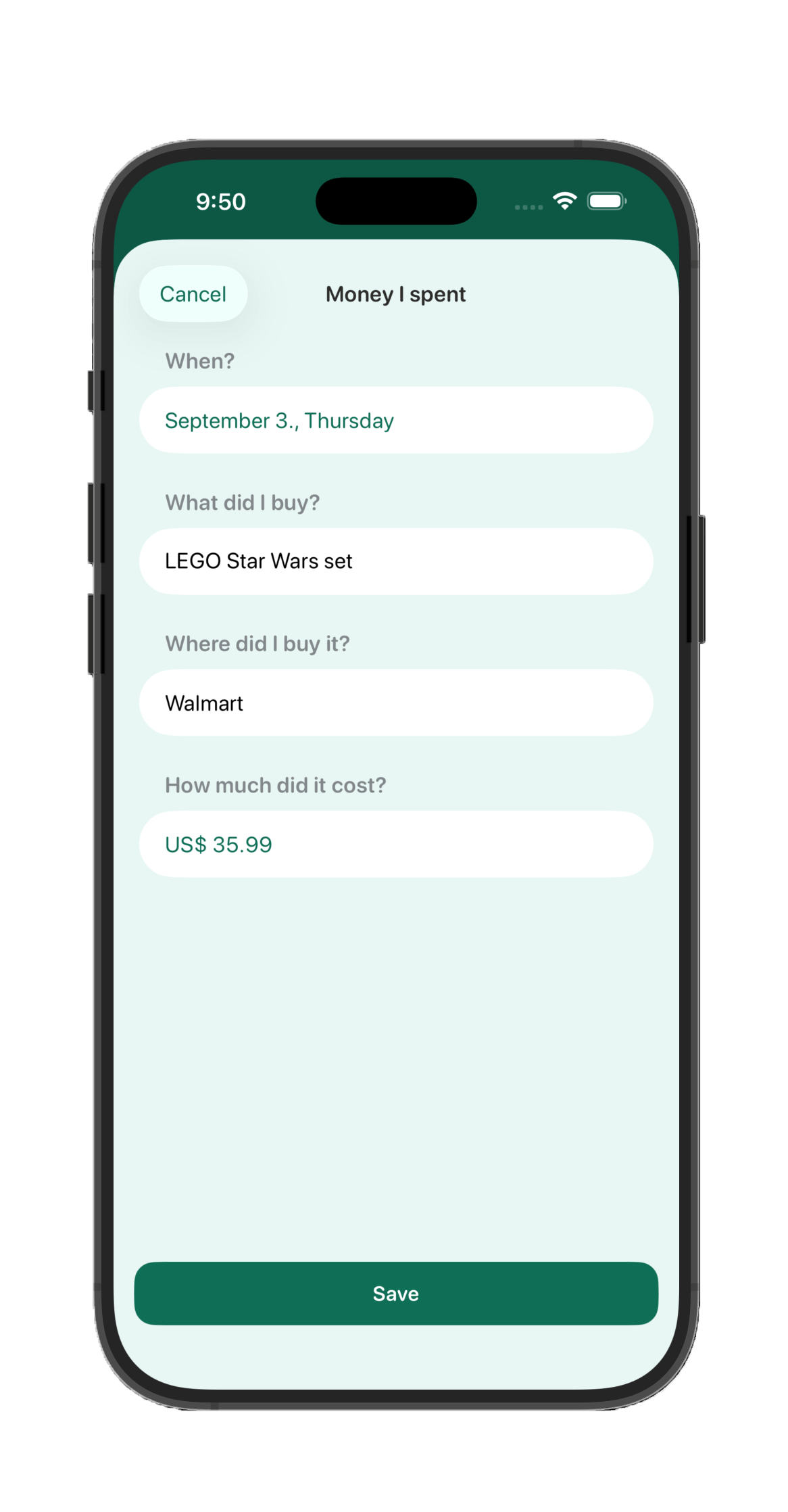
Child profiles get a deliberately separate, simplified version of the app: their own single account, set up automatically; a simple way to log "I received money" or "I spent money"; a "Plan to buy" wishlist for things they're saving toward; and a short history of their own activity. No budgets, no visibility into anyone else's balances, no settings — an admin manages everything about a child's profile from this screen.
Adding a member
Tap "Add member," then choose Adult or Child. For an adult: enter a display name and email address and send — Havnest Money emails them an invitation. They open it, see which household they're being invited to, and create their own account with their own password and name; accepting the invitation registers them the moment they finish signing up. You don't have to wait for that, either — accounts can be set up and even assigned to a newly invited member straight away, even while waiting for the acceptance of the invitation.
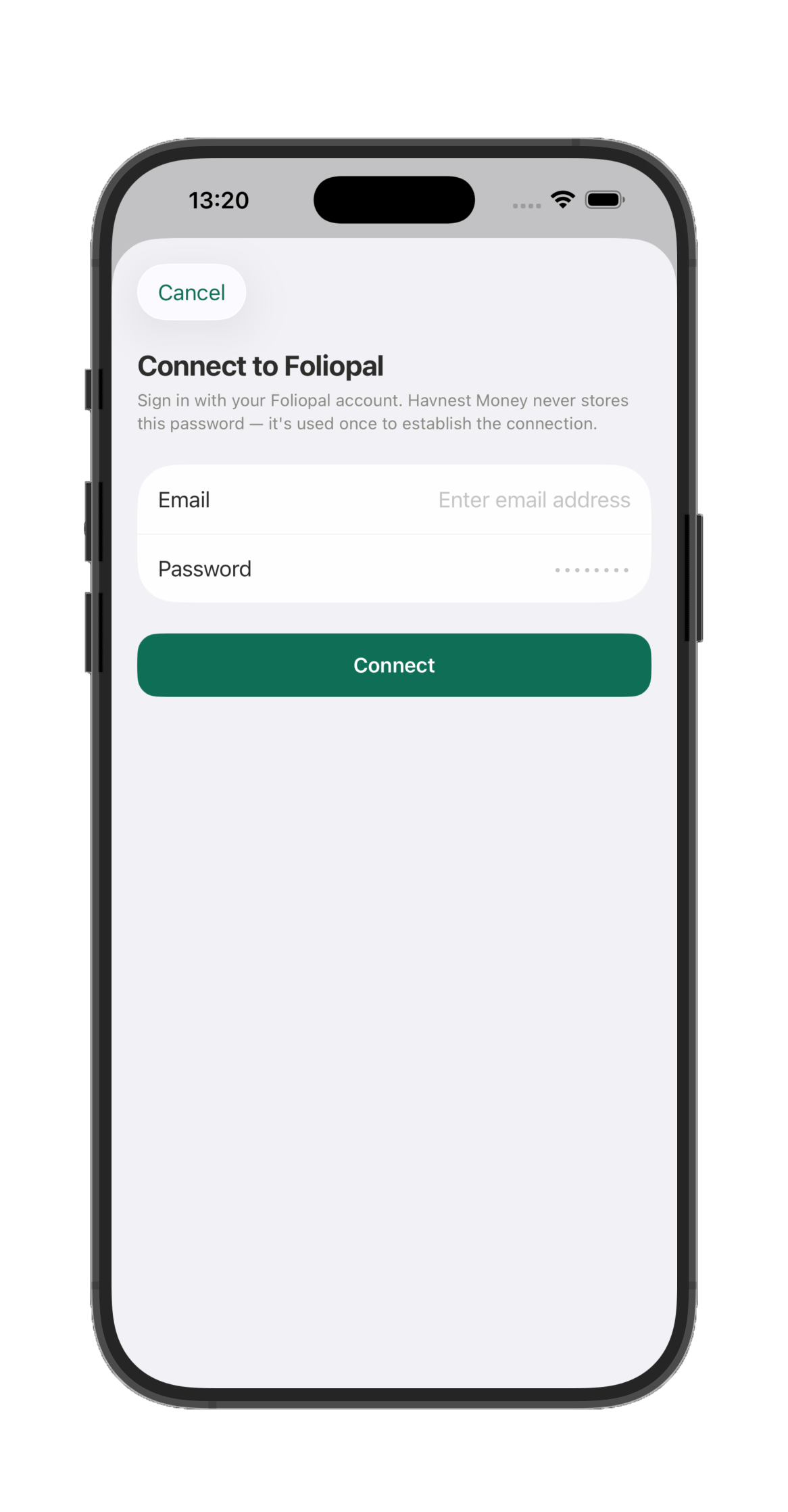
For a child: A child might not have an email address, therefore, the sign-up process does not require them to have one at all. The admin enters their display name and sets a password for them (at least 8 characters), and Havnest Money creates their sign-in credentials immediately — a short, auto-generated sign-in name is shown once, together with the password you just chose, and a Cash account is automatically set up for them in the background (visible as a normal Cash account for adult users). A child never receives an invitation and never creates their own account; an admin sets everything up on their behalf.
During the first time anyone new signs in, adult or child, their device needs the household's own decryption key before it can read any of the household's financial data. That's either a quick scan of a code from an already-set-up device, or typing in the household's Recovery Key directly — see How your data is protected for the full picture, including why that key matters so much.
Editing a member
Tap anyone in the list to open their profile. Anyone can rename themselves, and an admin can rename anyone. An admin can also grant or revoke another adult's Admin rights (a Child profile cannot be upgraded to admin status). Moving someone between Adult and Child isn't something you can change once they've been added — decide that when you first create their profile.
Changing a password
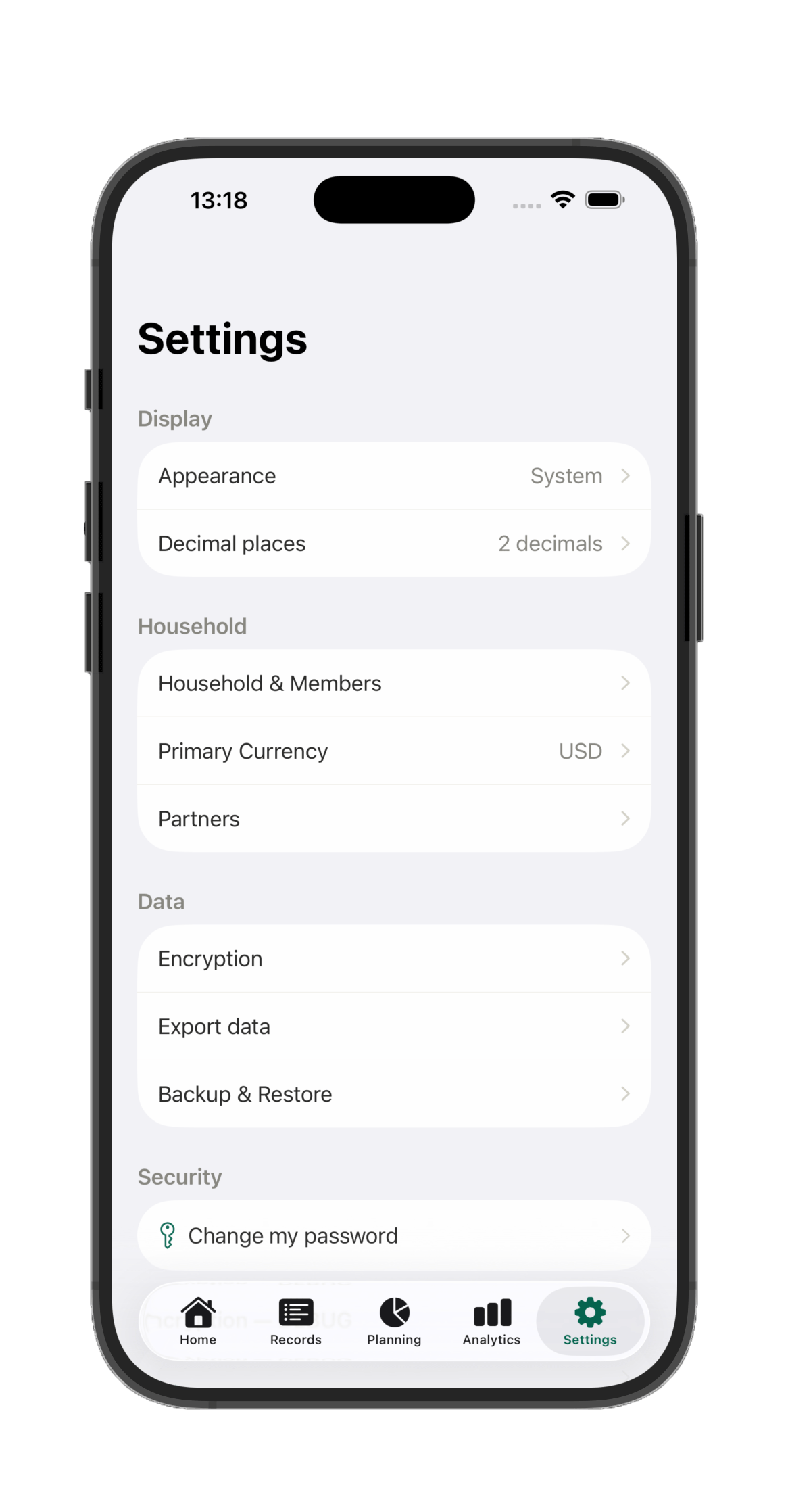
For yourself, as an adult: Settings → Security → "Change my password" — enter your current password once, then your new one (at least 8 characters, including a number).
For a child: an admin resets it from that child's own profile on this Household screen ("Change password," under Sign-in). The new password is shown once, right there on screen, and never again, so make sure the child (or whoever helps them sign in) actually gets it before closing the screen. The same section also has a QR code that signs a child's device in directly, without typing anything at all.
Anything else worth knowing
If someone hasn't accepted their invitation yet, their profile shows "Invited" with a "Resend invitation email" option — useful if the original email got lost or expired. Removing a member is admin-only (you can't remove yourself this way), and Havnest Money will first ask who should inherit that person's accounts — any other already-registered member — since an account can never be left without an owner. Whoever inherits the removed user's data will have their name assigned to the removed person's accounts.